



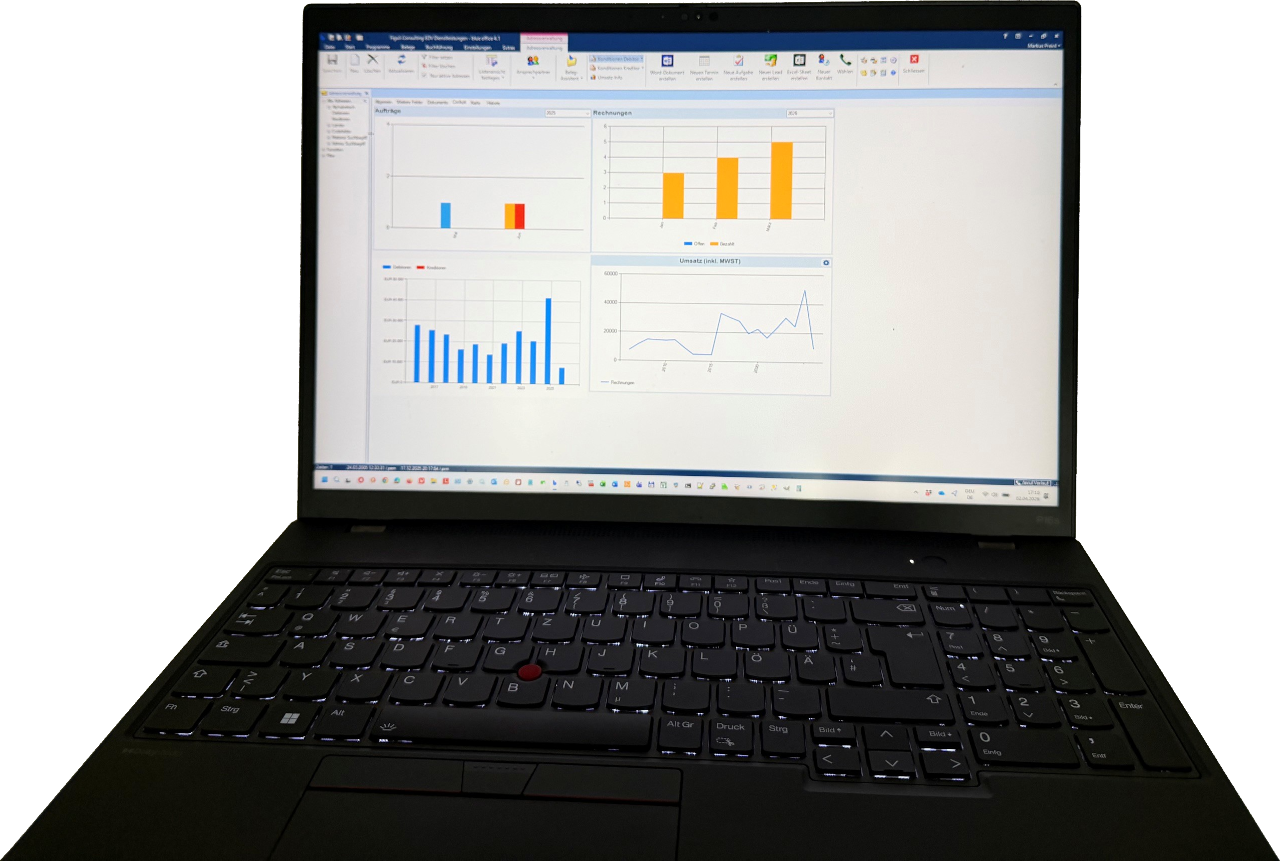
The search in blue office does not find any records.
Problem
You cannot find the desired data in the overview, e.g. an address in the address management.
Cause
The data fields required for the search are not selected.
Solution
In your view, click the arrow next to the magnifying glass icon in the upper right corner, above the column headers. A window will open where you can select the data fields, which are represented as columns in this view. For example, select the "Name (Invoice Address)" column for the name in the invoice address so that the search can be performed in this data field. To the right of each checkbox, you can specify the search logic. For text fields, the asterisk (*), also called a wildcard or wildcard character, is recommended. It allows for an approximate search where your search text can appear anywhere within the data field.
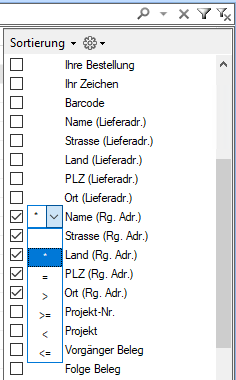
Detailed help can be found in the blue office help documentation under section 8-25, "Searching for Documents." The search options apply analogously to all overview screens, such as Address, Item, Project Management, etc.
The search settings are independent of the columns displayed in the overview. Therefore, you can also search in columns that are not shown.
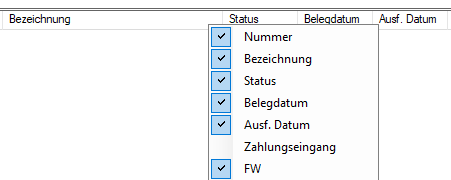
You can show or hide columns by right-clicking on any column header and selecting the column.
You can change the order of the columns by clicking on the column header, holding it down, and dragging it to the desired position.